Classroom poster maker

Make a classroom-sized visual from one image.

Enlarge a map, diagram, timeline, or student artwork across the paper already in the school printer.

Start with your file

Free to use. Your finished PDF is yours to print and keep.

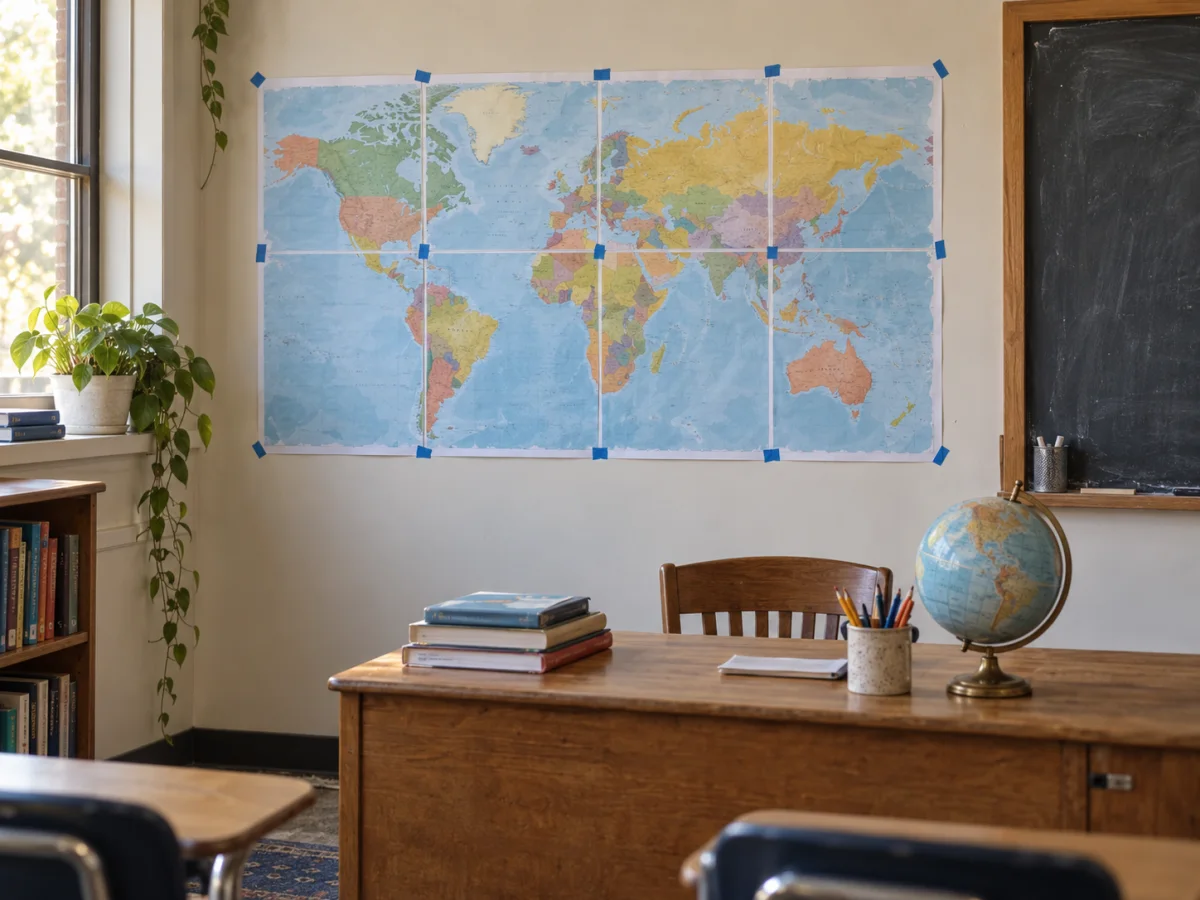
Large world map assembled from printed pages on a classroom wall
A world map enlarged for a classroom display.
1

Choose your artwork

JPG, PNG, WebP, or one-page PDF

2

Set the poster size

Use pages or a real finished size

3

Choose the crop

Fit keeps everything. Fill trims edges.

4

Choose the finish

Keep the image original or turn it into printed dots.

Printer setup

PageToPoster does not store your file

Print preview

Drop your artwork here

See every page before you print.

Up to 20 MB
Clear print setup

Readable from the back of the room.

Start with a high-resolution map, diagram, or exported slide. The preview shows how the image crosses each page and estimates whether it will stay clear at the selected size.

For a temporary display, keep the overlap and page labels on. Trim one edge at each join, line up the repeated image, and tape the finished rows from behind.

If the poster will be laminated, assemble it first and use several smaller laminating pouches, or ask the school print room whether it accepts tiled sheets.

Before you print

Settings that matter for this job.

  1. Check labels at the intended size.

    Map names and diagram text should remain readable in the preview at the finished dimensions.

  2. Keep the page labels on.

    They make it faster to reassemble a display after transporting it between rooms.

FAQ

Questions about this print job.

What can I enlarge for a classroom poster?

Maps, timelines, diagrams, exported slides, anchor charts, and student artwork all work as long as the source is one image or one-page PDF.

How can I avoid blurry classroom text?

Start with a large source file and watch the DPI estimate in the editor. Reduce the finished size if small labels look soft.

Print it right the first time.

Does PageToPoster store my image?

PageToPoster does not store your image or PDF.

Which print setting should I use?

Choose Actual size or 100% in the print dialog. Turn off Fit, Shrink, and Scale to page so every sheet keeps its intended dimensions.

Why do the pages overlap?

A small repeated edge makes alignment easier. Trim the marked edge of one sheet, place it over the matching image on the next sheet, then tape from behind.

Will this work with a home printer?

Yes. The default safe margin works with common inkjet and laser printers. Use the free printer scaling test if exact physical size matters.

What image quality do I need?

The live preview estimates effective image DPI. Above 150 DPI is crisp at close range. Lower values can still work for wall posters viewed from a few feet away.