Block poster maker
Free block poster maker.
Split one image across multiple pages, set the finished size, and preview every sheet before you download the printable PDF.
- Print a poster on multiple pages
- A4, US Letter, and custom paper
- JPG, PNG, WebP, or one-page PDF
Choose your artwork
JPG, PNG, WebP, or one-page PDF
Set the poster size
Use pages or a real finished size
Choose the crop
Fit keeps everything. Fill trims edges.
Choose the finish
Keep the image original or turn it into printed dots.
Printer setup
PageToPoster does not store your file
Drop your artwork here
See every page before you print.
Up to 20 MBHow to make a block poster.
A block poster is one large image divided into a numbered grid of ordinary printer pages. The editor calculates the layout before you use any paper.
- 01Choose the image
Select a JPG, PNG, WebP, or one-page PDF, or start with the sample to try the editor.
- 02Set the poster size
Choose the page grid or enter the exact finished width and height. Then select A4, US Letter, or a custom paper size.
- 03Preview and download the PDF
Check the crop, page labels, margins, and overlap before downloading the tiled PDF for printing.
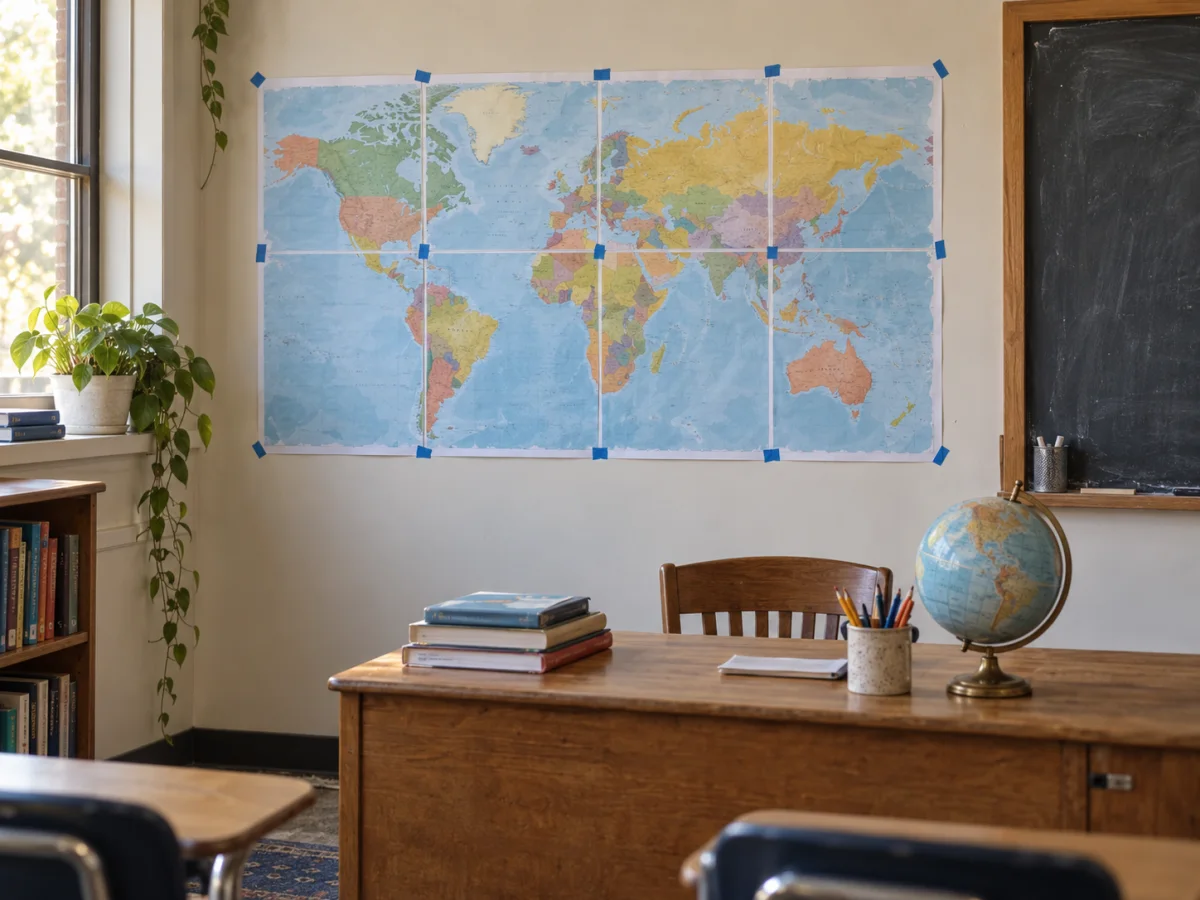
A real finished example, not a mockup.
A block poster works because the PDF handles the overlap, labels, and cut marks. You print ordinary sheets, then trim and tape the joins.
Use the same tool for posters, patterns, and signs.
Choose the print job you are making, then start with the same page-grid editor.
Small tools that prevent expensive reprints.
Check the paper count, printer scale, and size before you commit to a full run.
FAQ
What is a block poster maker?
A block poster maker spreads one image across several ordinary sheets of paper. PageToPoster adds the cut marks, overlap, and page labels so you can print and assemble the poster at home.
How do I make a block poster?
Choose an image, set the number of sheets wide and tall, check the preview, and download the tiled PDF. Then print at Actual size or 100%.
Can I print a block poster on A4 or US Letter?
Yes. Choose the paper that is loaded in the printer. The block poster maker supports both A4 and US Letter, plus a custom paper size if you need it.
How many pages will my block poster use?
Multiply the number of pages wide by the number of pages tall. The editor and paper-count calculator both show the total before you print.
Should I print at Actual size?
Yes. Use Actual size or 100% and turn off Fit or Shrink so the poster stays the size you chose in the editor.
Is the block poster maker free?
Yes. You can make and download a tiled poster PDF without paying for an export. PageToPoster does not add a watermark to the finished poster.